Guides
How to Give Your Students Hands-On VMs
Empower students with hands-on learning using CourseStack’s virtual machines.
Why Hands-On VMs Matter
Courses, workshops, and other educational content have a simple goal; help the student learn and retain new skills. For technical skills in industries like cybersecurity, information technology, software engineering, and data science this can be especially challenging!
In these fields, traditional methods of teaching often fall short. Purely relying on slides, blog posts, or even video content just isn't effective enough for many students to truly understand and retain the knowledge they came for. In technology, a certain amount of hands-on practice and muscle memory really helps to drive home the more difficult concepts.
This is where using VMs in your course comes in! By providing students their own realistic, hands-on learning environment you can significantly improve their learning outcomes.
What Makes a Great Student VM Experience
A critical part of making sure learning with hands-on virtual machines is beneficial, rather than a distraction, is ensuring a fantastic student VM experience. We've found this come downs to three core requirements:
- Speed and Reliability.
Students should spend their time practicing the technical skills you're teaching, not setting up their environment or getting frustrated by flaky virtual machine connections. - Isolation and Security.
Every student deserves their own learning environment. While shared VM setups might seem attractive from a cost perspective, they can lead to students disrupting each others learning. - Affordability.
This can be the trickiest part of giving your students hands-on VMs, but also the most important. Controlling the cost of your learning environments is critical to ensuring students can afford to participate (and/or you can afford to foot the bill).
On CourseStack, these core requirements come for free with every VM you build - and it's incredibly easy!
Building Virtual Machines in CourseStack
We've made building VM's as simple as possible in CourseStack so you can focus on creating amazing course content, not fighting with your tech stack.
First, let's go over the core concepts and terminology of the CourseStack platform to set the stage.
- Systems
- We refer to VMs in CourseStack as "Systems". This is a more generic term and gives us flexibility in the future to lump in other similar content types to this category, regardless of the actual technology they run on.
- Images
- Your saved versions of Systems that can be added to courses are called "Images". Underneath the hood these are in fact AWS AMIs.
- Credits
- All of our hands-on content types, including Systems, use a credit system to track usage. This allows us to provide out creators with a single, transparent usage metric so you always know what your potential costs are.
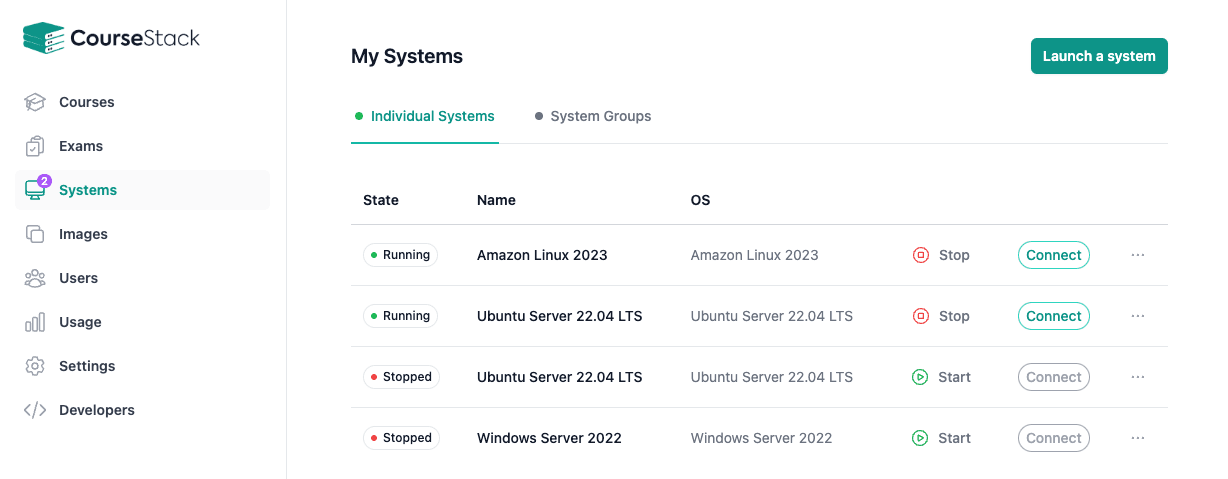
Launch your first system by navigating to the Images tab, and selecting any of the CourseStack provided base images. These are default, clean operating systems without any modifications. We currently have flavors of Amazon Linux, Debian, Kali Linux, Suse, Ubuntu, and Windows Server.
When selecting your specific operating system to launch, there are a number of other settings you'll need to set. Give your system a System Name, choose the System Size based on the performance you'll require, and set how much storage you'll need with the Disk Size setting.
Once you've connected to your system (via SSH, RDP, or VNC), the world is your oyster! Run commands, upload files, install software, and set the system up exactly how you want your students to access it.
After configuring your system for student use, the last step before adding it to a course is to create an Image. Select "Create Image" from the system drop down menu, and give your new image a name!
Not everyone prefers to build directly within CourseStack, and that's OK! You can also import an image you've already built from an AWS Account you control using the "Import an Image" feature.
Adding VMs to CourseStack Courses
To add VMs to a Course, create a new course or edit an existing one. If you've made a new course, it will have a single chapter and lesson. Selecting "Add Content" will present a modal of all our supported content types. Select "System".
In the lefthand side panel, select Systems and "Add System". Choose the custom image you configured earlier, and set the System name, performance, and other settings.
To see what this will look like for your students, be sure to save your lesson then "Preview" the content. You'll notice we display the Credits per hour this system consumes. Select "Launch" to deploy your preview system and access it from the student perspective.
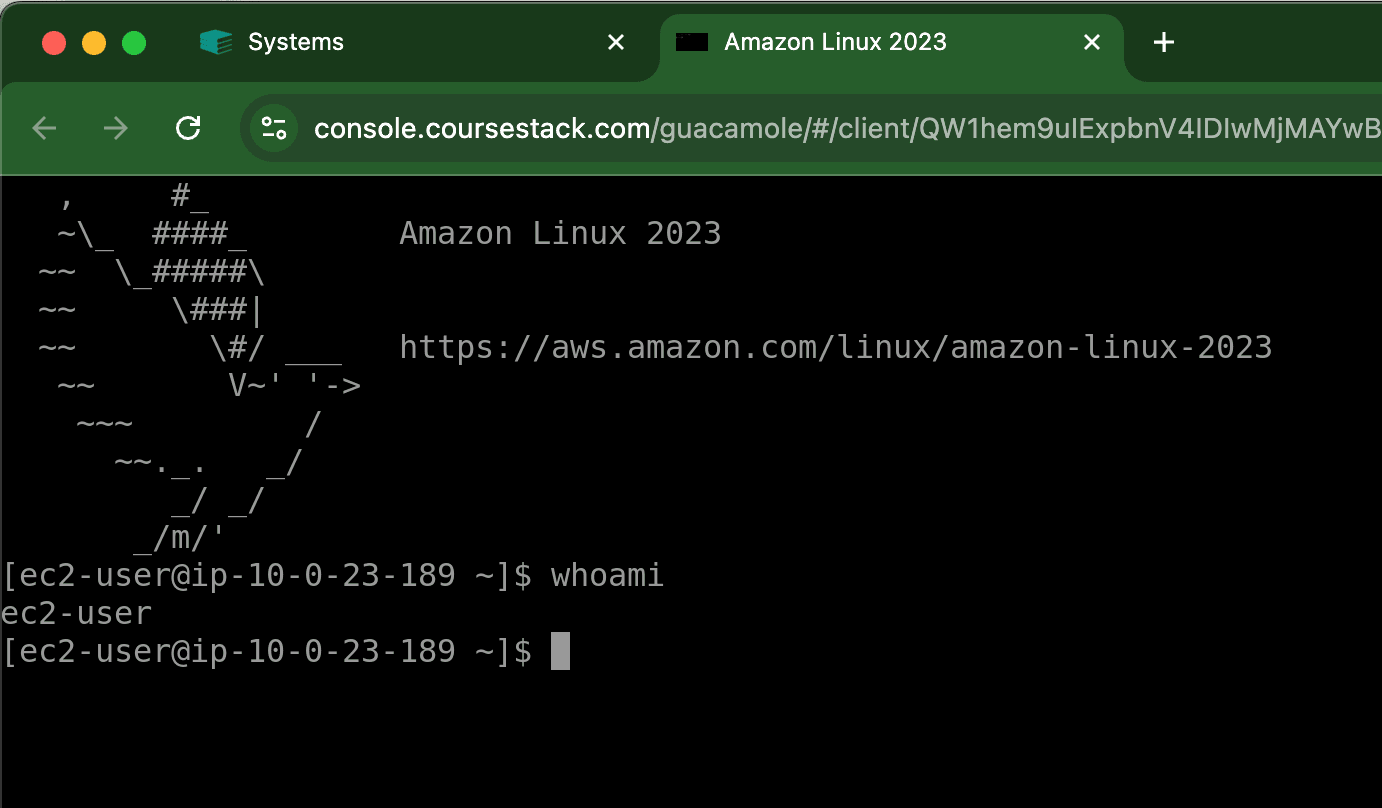
Once your system is launched, you'll notice it now has a "Running" state and a specific IP address! You can view power settings to stop or reset the system. Finally, "Connect" to the system to get dropped into your browser based SSH session!
Wrapping Up
If you've followed along with the simple steps above, you've now got a browser accessible, customized virtual machine ready to deploy to thousands of students :)
We work very hard to make this process as fast, simple, and painless as possible!
Ready to build your own academy?
Start creating hands-on technical courses with CourseStack today. It's free to get started.